5 practical rules to organize your Downloads folder
A small Mouzi setup for documents, images, screenshots, invoices and installers, with working regex examples and an explanation of rule order.
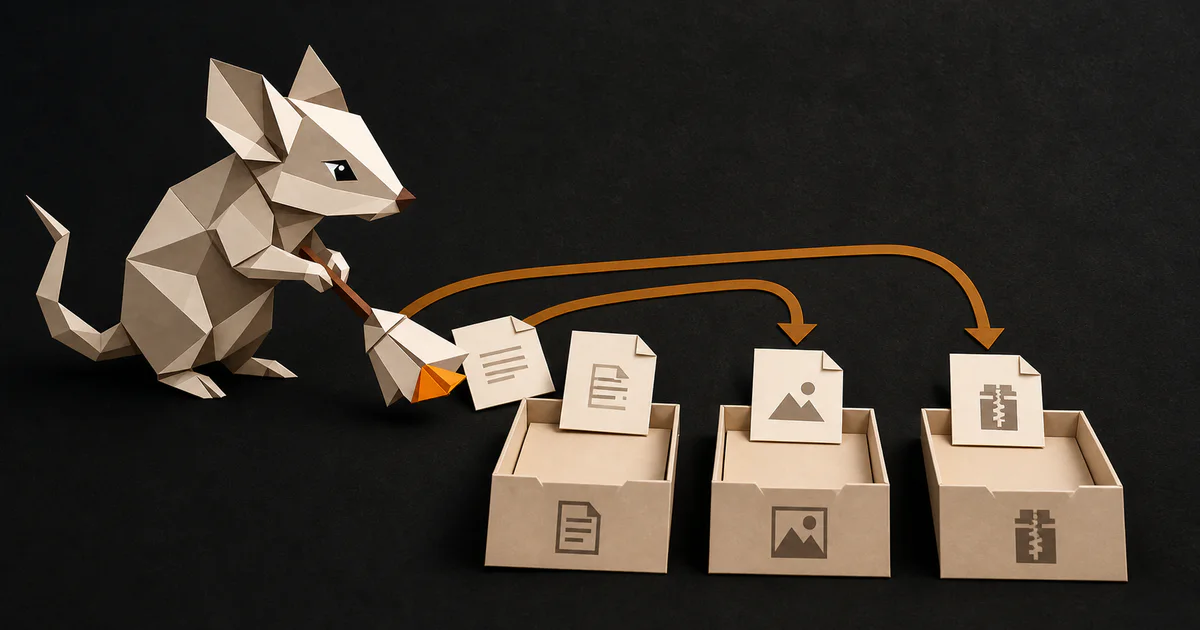
You do not need twenty rules to clean up a Downloads folder. Start with the files that pile up most often, leave everything unfamiliar where you can see it, and add another rule only when a pattern becomes obvious.
The five setups below cover a useful starting point. The examples use relative destinations, so Documents means a subfolder named Documents inside the folder Mouzi watches.
1. Start with documents, images and archives
Three extension rules remove most of the predictable clutter without making decisions about unusual files:
Rule: Documents
Extensions: pdf, docx, xlsx, pptx, odt
Destination: Documents
Rule: Images
Extensions: jpg, jpeg, png, gif, webp, heic
Destination: ImagesRule: Archives
Extensions: zip, rar, 7z, tar, gz, xz
Destination: ArchivesMouzi compares extensions without caring about letter case, so REPORT.PDF matches the same rule as report.pdf.
Do not add a catch-all rule yet. Files without a matching rule remain in Downloads, which gives you a chance to decide whether they need a permanent home.
2. Split documents by date
One Documents folder eventually becomes another messy folder. Dynamic paths keep it usable:
Rule: Dated documents
Extensions: pdf, docx, xlsx, pptx, odt
Destination: Documents/{year}/{month}
A PDF downloaded in August 2026 moves to Documents/2026/08. Mouzi creates missing folders when it moves the file.
The date comes from the moment the rule runs. It is useful for sorting new downloads, but it does not inspect the date printed inside a document or recover the original publication date from metadata.
Other available placeholders include {day}, {extension} and {filename}. The dynamic paths guide lists the complete behavior.
3. Keep screenshots separate
Screenshots are images, but mixing them with photos makes both folders harder to browse. Use a specific screenshot rule above the general image rule:
Rule: Screenshots
Extensions: png, jpg, jpeg
Pattern: (?i)^screenshot.*\.(png|jpe?g)$
Destination: Images/Screenshots/{year}
(?i) makes the regular expression case-insensitive. That matters because regex patterns in Mouzi are otherwise case-sensitive. The pattern matches names such as Screenshot 2026-08-09.png and screenshot_1420.JPG.
Different screenshot tools use different names. If your files start with Capture or Zrzut ekranu, change the beginning of the pattern:
(?i)^(screenshot|capture|zrzut ekranu).*Test the exact naming used by your computer instead of copying a pattern blindly.
4. Pull invoices out of general documents
Invoices often arrive as PDFs, but they are easier to find when they have their own destination:
Rule: Invoices
Extensions: pdf
Pattern: (?i)(invoice|faktura|rechnung)
Destination: Documents/Invoices/{year}
Add the words your vendors actually use. If an electricity provider names every bill billing-statement-1234.pdf, add billing-statement to the expression.
Put this rule above the general PDF or document rule. Mouzi stops at the first matching rule. If the broad PDF rule comes first, the invoice rule never sees the file.
5. Move installers without losing portable tools
Installers are easy to forget after an application is installed:
Rule: Installers
Extensions: exe, msi
Destination: Installers
This rule also matches portable Windows applications because they use the same .exe extension. If you deliberately keep a portable program in Downloads, add its file name to .mouziignore:
my-portable-tool.exeYou can also exclude a group of files with a wildcard:
portable-*.exeThe exclusions guide explains comments, wildcards and folder exclusions.
Rule order is part of the setup
A practical order for the rules above is:
1. Invoices
2. Screenshots
3. Dated documents
4. Images
5. Archives
6. Installers
The two narrow rules come first. General extension rules sit below them. This keeps invoice-august.pdf out of the general document folder and Screenshot.png out of the general image folder.
When a rule gets something wrong in public version 0.1.6, open History and undo the move. Then use the row-level toggle to disable the rule while you adjust its pattern.
Add rules slowly
Automation becomes annoying when it tries to predict too much. Five clear rules are usually more useful than a long list built in one sitting. Let unknown files stay visible. After you notice the same kind of clutter a few times, give it a rule.
See the full rules documentation, or download Mouzi and build the first three rules in a test folder.
Updated August 9, 2026